I keep hearing about how CSS Grid is going to be the future of layout. So far I have not tried it out at all, but I plan to give it a whirl soon. At the moment I'm still using Bootstrap 4 which has elements of flexbox, but I've never really dove into flexbox either. The developer who court the convention circuit seem to be really pumped about CSS Grid though, so that I where I think my energy is best pointed. The only downside of being a bit late to the game is that CSS Grid is pretty much compatible with all modern browsers at this point. My thinking in the past was, no sense developing a skill set for a framework that can't be used universally.
Hopefully I'll have some great updates soon.
Tuesday, April 9, 2019

Thursday, March 21, 2019
Hey Guess What I'm Still Here!
Hi Everyone,
It's been a long time since my last post and a lot of things have changed. Let me quickly bring you up to speed.
As of June 2017 I am no longer working at LandscaperWebsites.com/Porterware. I was not fired and I did not quit. Circumstances happened that made the company no longer have the income to afford an employee, so we parted ways. It stunk to lose stable employment but I will say it was a good run and I left on good terms with the owner.
So, what have I been doing since then? First I took some time to try to figure out my next move. During that span of time, some clients that I had built relationships with over the 9 years I was at LandscaperWebsites contacted me directly and asked for some help with their websites. Since I still had access to the servers their sites are on, I was able to do a few jobs for them. It was during these jobs that I decided to try my hand at doing freelance web development, site maintenance, and some seo work. We can talk later about why it's only some seo work.
At the moment I am still kicking along doing freelance sites, consulting and general web related work, mostly with the landscaper and pest control industries. If you're interested you can view more about my website offerings at robertwilliamashton.com. Give me a shout via the contact page if you need an affordable, practical, inexpensive site for your upstart business.
It's been a long time since my last post and a lot of things have changed. Let me quickly bring you up to speed.
As of June 2017 I am no longer working at LandscaperWebsites.com/Porterware. I was not fired and I did not quit. Circumstances happened that made the company no longer have the income to afford an employee, so we parted ways. It stunk to lose stable employment but I will say it was a good run and I left on good terms with the owner.
So, what have I been doing since then? First I took some time to try to figure out my next move. During that span of time, some clients that I had built relationships with over the 9 years I was at LandscaperWebsites contacted me directly and asked for some help with their websites. Since I still had access to the servers their sites are on, I was able to do a few jobs for them. It was during these jobs that I decided to try my hand at doing freelance web development, site maintenance, and some seo work. We can talk later about why it's only some seo work.
At the moment I am still kicking along doing freelance sites, consulting and general web related work, mostly with the landscaper and pest control industries. If you're interested you can view more about my website offerings at robertwilliamashton.com. Give me a shout via the contact page if you need an affordable, practical, inexpensive site for your upstart business.
Wednesday, April 27, 2016
Upload and Send Folders via Google Drive
To send a folder of files it is easy and quick to use Google Drive. Google Drive gives 15 gigabytes of storage to anyone with a gmail account. Using Google Drive works great for sending folders that contain a lot of images, or any other type of files. Below are the simple instructions on using Google Drive.
Step 1.
Log in to your Gmail account. If you do not have a Gmail account, it is easy and free to create one.
Step 2.
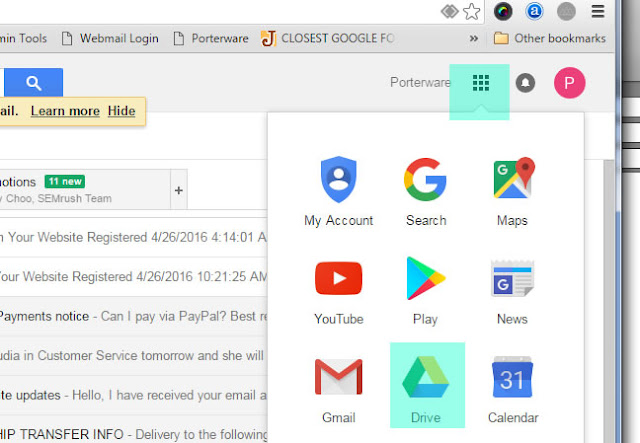
Click the app grid in the upper right corner and select Drive from the pop-up box.
Step 3.
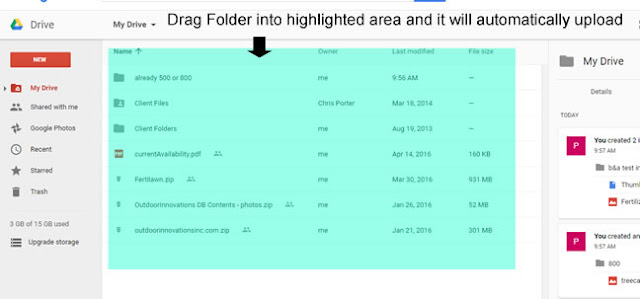
The main page of your Google Drive will open. Drag the folder that you want to share into the main area of the drive page. This will automatically upload the folder to your drive and you will see the progress in the lower right corner.
Step 4.
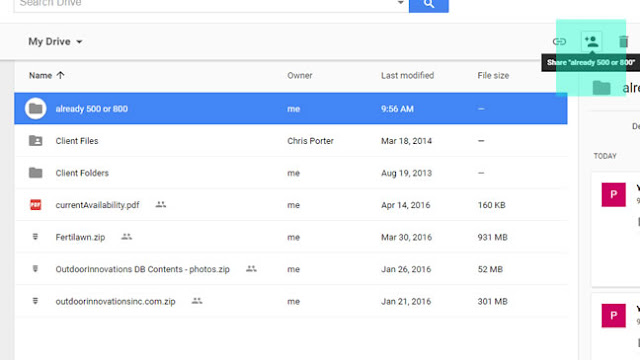
When upload is complete, click on the uploaded folder to highlight it. When it is highlighted you will see an icon that looks like a person with a + sign in the upper right. This is the "Share" icon. Click the Share icon.
Step 5.
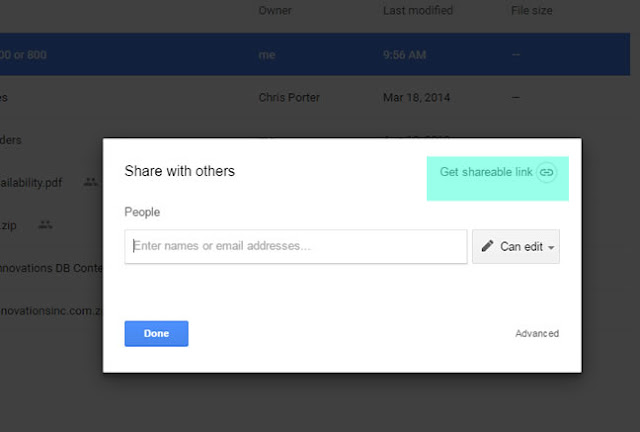
A pop-up box will open. Click "Get sharable link" in the upper right corner. Copy the link and send the entire link to whoever you want to share the folder with.
That's it! Very easy and convenient.
Step 1.
Log in to your Gmail account. If you do not have a Gmail account, it is easy and free to create one.
Step 2.
Click the app grid in the upper right corner and select Drive from the pop-up box.

Step 3.
The main page of your Google Drive will open. Drag the folder that you want to share into the main area of the drive page. This will automatically upload the folder to your drive and you will see the progress in the lower right corner.

Step 4.
When upload is complete, click on the uploaded folder to highlight it. When it is highlighted you will see an icon that looks like a person with a + sign in the upper right. This is the "Share" icon. Click the Share icon.

Step 5.
A pop-up box will open. Click "Get sharable link" in the upper right corner. Copy the link and send the entire link to whoever you want to share the folder with.

That's it! Very easy and convenient.
Tuesday, May 27, 2014
Making Sure Your Website Forms Are Working
The following information is relevant to all LandscaperWebsites.com, GreenIndustryWebsites.com, and PestControlWebsites.com websites.
It is recommended that you check each form on the site at least once a week, in order to make sure you are not missing opportunities sent by potential customers. It is up to you to monitor whether the forms on your site are making it to the correct INBOX. Because there are so many variables about the local machines that receive forms, and the way their specific email clients are configured, we do not have a way to monitor that all form submissions make it to their final destination.
Step 1:
The first step to make sure you know the email address that the forms are sending to, and make sure you have access to the machine that receives email at that address. If you do not know what email address the forms are being sent to, just give us a call and we'll let you know.
Step 2:
Go to your website and fill out the form you want to test. You may want to put the words "test" in the form fields so that you'll be able to identify that it is in fact a test and not a form from an actual user. Once the form is filled out, hit the "SUBMIT" button.
Step 3:
Watch for the form to appear in the INBOX of the email account that is supposed to receive it. It should happen very quickly. If you don't see the form appear in the INBOX after about 5 minutes, then look for it in your SPAM/JUNKMAIL folder.
If the form has been sent to your SPAM/JUNKMAIL folder, consult the "Help" section of your email client for info on how to identify emails from the forms as safe/trusted senders or similar. If you cannot find this info in the "Help" section, a Google search for the info may be helpful. Basically you want to let your email client (usually Outlook) know that messages from the forms are not spam and should be sent to the INBOX.
Once you have made the adjustments, you can go back to your website and send another test. Repeat the process until you are getting the message in your INBOX.
NOTE: the amount of support we can give for your local machine is very limited. There may be cases where you need to have someone who can be on-site with you to help with local account issues.
It is recommended that you check each form on the site at least once a week, in order to make sure you are not missing opportunities sent by potential customers. It is up to you to monitor whether the forms on your site are making it to the correct INBOX. Because there are so many variables about the local machines that receive forms, and the way their specific email clients are configured, we do not have a way to monitor that all form submissions make it to their final destination.
It is very easy to make sure the forms on your website are working!
Step 1:
The first step to make sure you know the email address that the forms are sending to, and make sure you have access to the machine that receives email at that address. If you do not know what email address the forms are being sent to, just give us a call and we'll let you know.
Step 2:
Go to your website and fill out the form you want to test. You may want to put the words "test" in the form fields so that you'll be able to identify that it is in fact a test and not a form from an actual user. Once the form is filled out, hit the "SUBMIT" button.
Step 3:
Watch for the form to appear in the INBOX of the email account that is supposed to receive it. It should happen very quickly. If you don't see the form appear in the INBOX after about 5 minutes, then look for it in your SPAM/JUNKMAIL folder.
If the form has been sent to your SPAM/JUNKMAIL folder, consult the "Help" section of your email client for info on how to identify emails from the forms as safe/trusted senders or similar. If you cannot find this info in the "Help" section, a Google search for the info may be helpful. Basically you want to let your email client (usually Outlook) know that messages from the forms are not spam and should be sent to the INBOX.
Once you have made the adjustments, you can go back to your website and send another test. Repeat the process until you are getting the message in your INBOX.
If the form DID NOT reach your INBOX or SPAM/JUNKMAIL box, give us a call at 770.887.2901 and we'll run a test on our end to see if the problem is actually with the form, or with your local machine set up.
NOTE: the amount of support we can give for your local machine is very limited. There may be cases where you need to have someone who can be on-site with you to help with local account issues.
Monday, January 6, 2014
Immaculate Outdoor - Austin / Leander TX

I worked with Josh from Immaculate Outdoor, a landscaping - hardscaping company serving the Austin TX area, for a little over a year preparing his site. We took our time as he already had a previous site running, and wanted to make sure that this new site was complete in every aspect before launching. he also had a very large amount of photos to be uploaded. Of all the sites I've worked on, this is the one which has the most detailed text content. Immaculate Outdoor should do really well with this site.
Team Sports Turf - West Caldwell NJ

Recently completed the new Team Sports Turf website. Team Sports Turf are an excellent landscaping, hardscaping and athletic field company from West Caldwell New Jersey. They are also one of our oldest customers here at landscaperwebsites.com. This site features a jQuery homepage slideshow, and four easily editable "modules" on the homepage which can be used to seasonal promotions.
Thursday, December 19, 2013
Roanoke Lawn Care by The Green Team
Lat month I completed construction of a new website for a Roanoke Lawn Care company called The Green Team.

This is the first time we have done a site that features Responsive Design. It was a bit of a challenge but in the end the results were excellent, giving the user the same experience no matter what size screen the site is viewed with.
One of my favorite parts of this site is the Kids Zone which features some very cool printable PDFs for kids to color, which include the Green Team alien logo. A nice touch.
Subscribe to:
Posts (Atom)